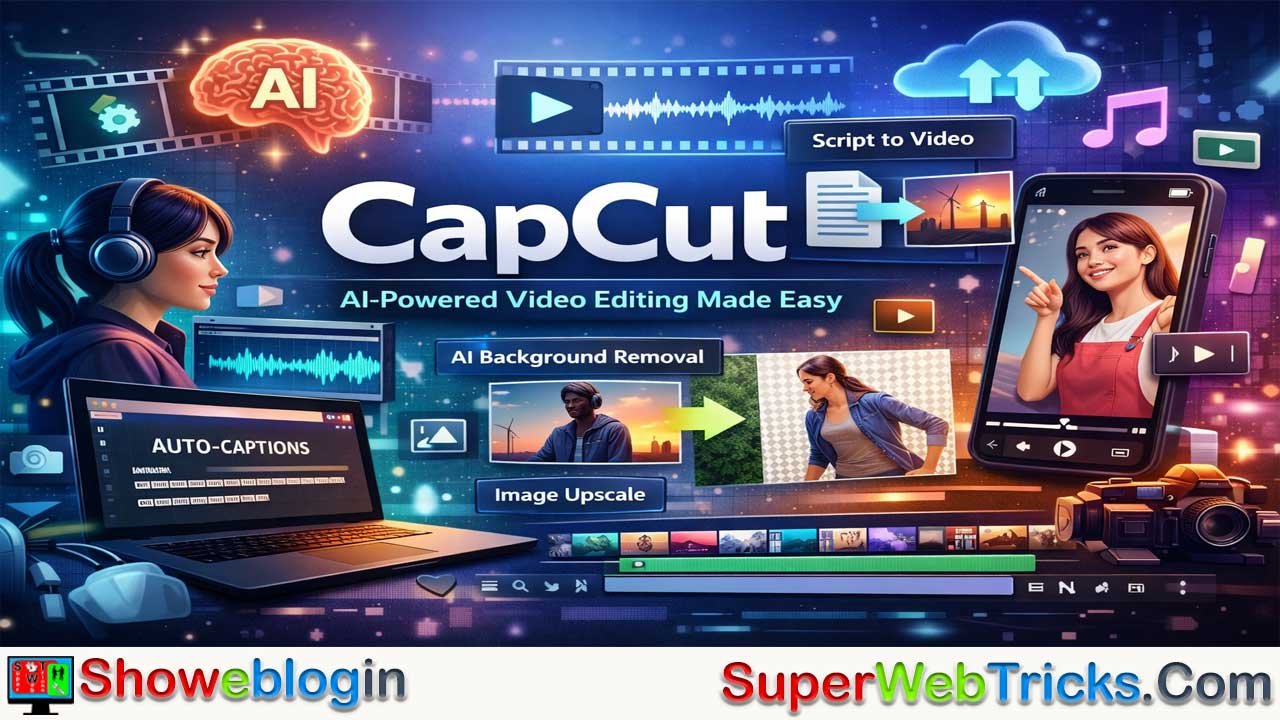




CapCut is a powerful and easy-to-use video editing platform that uses AI to simplify content creation. Its web and desktop versions allow users to edit videos without heavy hardware or complex software.
AI tools like Script-to-Video, auto-captions, background removal, and image enhancement help speed up editing and reduce manual work. The platform also offers a smooth timeline, large stock libraries, and cloud collaboration across devices. Beginners can use one-click AI features, while advanced users still have access to deeper editing tools.
Overall, CapCut makes professional video creation faster, simpler, and accessible to both casual creators and regular content producers.
| Aspect | Information |
|---|---|
| Platform | CapCut |
| Type | AI-powered video editing platform |
| Versions | Web, desktop, and mobile |
| Main Purpose | Fast and simple video creation |
| Key AI Tools | Script-to-Video, auto-captions, background removal, image enhancement |
| Workflow Benefit | Automates many editing tasks and reduces manual work |
| Editing Features | Timeline editing, keyframes, speed control, color grading |
| Assets Library | Built-in stock videos, music, sound effects, stickers |
| Collaboration | Cloud sync and team workspace (“Space”) |
| Pricing Model | Freemium with optional Pro features |
| Best For | Content creators, marketers, and social media videos |
Mastering the Cut: A Deep Dive into My Journey with CapCut’s AI-Powered Ecosystem
In the rapidly evolving landscape of digital content creation, the barrier between professional-grade video editing and casual storytelling has effectively dissolved. For those of us who spend our time exploring the frontiers of AI tools, we are often looking for the “holy grail”: a platform that balances sophisticated machine-learning capabilities with an intuitive, friction-free interface.
After months of navigating various Non-Linear Editors (NLEs), I found myself diving deep into CapCut, and what I discovered was a surprisingly robust powerhouse that leverages AI not just as a gimmick, but as a core functional engine.
The First Encounter: Breaking the Complexity Barrier
My journey with CapCut began on the web version. Traditionally, video editing requires heavy hardware—dedicated GPUs, massive RAM, and significant local storage. However, the browser-based experience at CapCut.com challenged my preconceptions. The interface is clean, minimalist, and devoid of the intimidating “button-bloat” found in software like Adobe Premiere Pro or DaVinci Resolve.
As an AI tool enthusiast, my first instinct was to look for where the “smart” features were hidden. I wasn’t disappointed. From the moment you land on the dashboard, it’s clear that CapCut isn’t just trying to be a video editor; it’s trying to be an automated production studio.
The AI Feature Set: Beyond Simple Filters
The real value for any AI user lies in the “Magic Tools” section. This is where the platform distinguishes itself from standard mobile-first editors. Here is a breakdown of the features that fundamentally changed my workflow.
1. Script-to-Video: The Content Creator’s Shortcut
One of the most impressive tools for those focused on efficiency is the Script-to-Video function. As someone who often starts with a written concept, I tested this by inputting a 500-word blog post about “The Future of Renewable Energy.”
The AI analyzes the text, generates a narrated voiceover (using surprisingly natural-sounding synthetic voices), and automatically pulls relevant stock footage from its massive library to match the keywords in the script. While no AI-generated video is perfect out of the gate, it reduced my “rough cut” time from three hours to approximately ninety seconds. For creators looking to maintain a high output on platforms like YouTube or LinkedIn, this is a game-changer.
2. Intelligent Auto-Captioning
If you’ve ever manually transcribed a ten-minute video, you know it is a soul-crushing task. CapCut’s “Auto-captions” feature uses advanced speech recognition to generate subtitles with high accuracy.
In my testing, it handled technical jargon and different accents with about a 95% accuracy rate. The ability to then batch-edit the style, animation, and placement of these captions across the entire timeline is a level of convenience that used to be reserved for expensive third-party plugins.
3. Background Removal and Smart Cutout
In the past, removing a background without a green screen required tedious frame-by-frame masking (rotoscoping). CapCut’s AI “Remove Background” tool is one of the most effective I’ve used in a browser.
Whether it’s a talking head video in a cluttered office or a person walking through a park, the edge detection is sharp. It allows for the “vlogger style” of layering yourself over gameplay or presentation slides without needing a professional studio setup.
4. AI Image Upscaling and Enhancement
As AI tool users, we often work with generated images that might come out at lower resolutions. The built-in image upscaler and “Photo Restoration” tools within the CapCut ecosystem allow you to sharpen assets before they ever hit the video timeline. This integration minimizes the need to jump between five different tabs and tools to finish one project.
The Workflow Experience: A Balance of Control and Automation
While the AI features are the headline, the core editing experience is what keeps me coming back. The timeline is magnetic, meaning clips snap together without leaving awkward black gaps. For a professional editor, this can be toggled off, but for 90% of users, it prevents the most common “rookie” editing mistakes.
Assets and Library Access
One of the biggest hurdles in video production is licensing music and finding stock assets. CapCut’s integration with a vast library of trending audio, sound effects, and Giphy-integrated stickers means you rarely have to leave the site to find what you need. The “Brand Kit” feature is also a nice touch, allowing you to save your specific hex codes and fonts to ensure consistency across multiple videos.
Cloud Collaboration
Working across devices is where the web version of CapCut shines. I can start a project on my desktop at the office, make a few tweaks on my laptop during a commute, and do a final review on my phone. The cloud synchronization is seamless. For teams, the “Space” feature allows for shared folders and collaborative editing, which is a significant step up from the “file-sharing” nightmare of traditional desktop software.
The Learning Curve: Surprisingly Shallow
For many AI tools, there is a “prompt engineering” phase where you have to learn exactly how to talk to the machine. CapCut sidesteps this by making the AI features “one-click.” You don’t need to know the technical terms for “frequency separation” or “chroma keying.” You just click “Retouch” or “Auto-reframe,” and the software handles the heavy lifting.
However, this simplicity doesn’t mean a lack of depth. If you want to dive into keyframe animation, speed ramping (the “velocity” effect popular in transitions), or complex color grading with LUTs (Look Up Tables), those options are all there. It’s an editor that grows with you.
Comparing the Options: Web vs. Desktop
While I spent a significant amount of time on the web version, I eventually downloaded the desktop application. For users dealing with 4K footage or high-bitrate files, the desktop version offers more stability and faster rendering times. It also includes some more advanced features like “Motion Tracking” (where an object or text follows a moving person) which can be more taxing on a browser.
That said, if you are a Chromebook user or someone who prefers to keep their local drive clean, the web version at CapCut.com is more than capable of producing professional-grade 1080p content.
The “Pro” Factor: Is it Worth It?
CapCut follows a “freemium” model. A vast majority of the features are free, but certain high-end AI effects, transitions, and cloud storage tiers are locked behind a “Pro” subscription.
As someone who evaluates AI tools based on ROI (Return on Investment), the Pro version is justifiable if you are producing content weekly. The “Pro” AI features—like enhanced voice isolation (which removes background noise from poor-quality microphones)—can save a video that would otherwise be unusable. However, for the casual hobbyist, the free version is arguably the most generous in the current market.
Practical Tips for AI Tool Users
If you’re just starting out on CapCut, here is how I recommend approaching your first project:
- Start with the “Auto-Reframe”: If you have a horizontal video (16:9) and need it for TikTok or Shorts (9:16), don’t manually crop it. Use the AI Auto-reframe. It will track the subject and keep them centered, saving you from having to animate the position of the clip.
- Use the “Match Out” for Audio: Nothing ruins a video like a sudden cut in music. Use the “Auto-beat” detection to find the rhythm of your track, and then use the “Fade-out” AI handles to make transitions smoother.
- Experiment with “AI Characters”: If you are camera-shy, CapCut has introduced AI-generated avatars that can speak your script. While still in the “uncanny valley” for some, they are becoming increasingly viable for educational and faceless “explainer” channels.
The Ethical and Creative Perspective
As we use more AI in our creative processes, the question of “authorship” often arises. What I appreciate about CapCut is that it uses AI to handle the labor, not the creativity. The AI doesn’t decide the story you want to tell; it just makes the process of telling it significantly less tedious.
It handles the color matching between two different cameras or the removal of “ums” and “ahs” in a speech, leaving the user to focus on the pacing, the message, and the emotional impact.
Final Thoughts: The New Standard for Accessible Creation
After extensive use, my verdict is that CapCut has successfully transitioned from a “mobile app for viral trends” to a legitimate, AI-integrated suite for creators. It represents a broader shift in technology: the move toward “intelligent” software that anticipates the user’s needs.
For the AI tool user, CapCut is a playground. It’s a place where you can take the assets you’ve generated in Midjourney or ChatGPT and stitch them together into a cohesive, professional narrative with minimal friction. Whether you are building a brand, documenting a project, or just experimenting with visual storytelling, the tools available at CapCut.com provide a powerful glimpse into the future of media creation.
In a world where attention is the ultimate currency, the ability to produce high-quality video quickly is a superpower. CapCut doesn’t just give you the tools; it gives you the time back to figure out what you want to say next.
FAQs about CapCut
What is CapCut used for?
CapCut is used for creating and editing videos quickly using AI-powered tools such as auto-captions, background removal, and automated video generation from scripts.
Is CapCut free to use?
CapCut offers a free version with many editing features, while some advanced AI tools, effects, and cloud storage options are available through a paid Pro subscription.
Can beginners use CapCut easily?
Yes, CapCut is designed with a simple interface and one-click AI tools, making it beginner-friendly while still offering advanced editing features for experienced users.
Does CapCut work on web and desktop?
Yes, CapCut works on web browsers, desktop applications, and mobile devices, allowing users to edit projects across multiple devices with cloud synchronization.
What AI features does CapCut provide?
CapCut includes AI features such as script-to-video generation, automatic subtitles, background removal, auto-reframe, image enhancement, and voice generation.
Is CapCut good for social media content?
Yes, CapCut is widely used for creating content for platforms like YouTube, TikTok, and Instagram because it supports quick editing, trending effects, and vertical video formats.
Do you need powerful hardware to run CapCut?
Not necessarily. The web version runs in a browser without requiring heavy hardware, though the desktop version performs better for large or high-resolution projects.
Can teams collaborate using CapCut?
Yes, CapCut offers cloud collaboration features where teams can share projects, organize files, and edit content together through shared workspaces.










Leave a Reply
You must be logged in to post a comment.