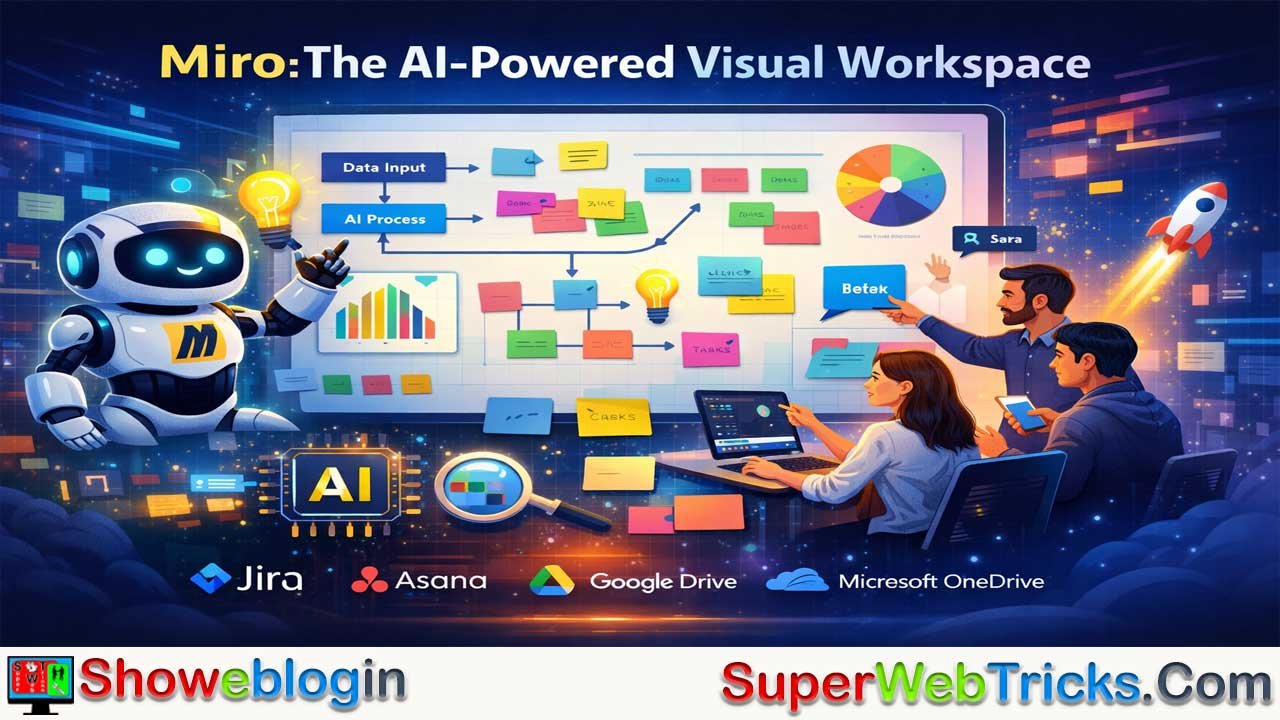




Today I will explain how using Miro transformed my workflow from scattered documents into a clear visual system. Instead of using linear tools like Google Docs or Notion, I used Miro’s infinite canvas to map ideas, AI workflows, and project plans visually.
Features like Miro Assist help generate ideas, summarize large brainstorming sessions, and organize messy notes quickly. The platform also supports real-time collaboration, integrations with tools like Jira and Asana, and flexible templates. Although it has a learning curve and needs better offline support, the author concludes that Miro is a powerful AI-driven visual workspace that helps teams organize ideas, design AI systems, and collaborate more effectively.
| Aspect | Details |
|---|---|
| Tool Name | Miro |
| Category | AI-powered visual workspace and collaboration platform |
| Core Concept | Infinite digital canvas for organizing ideas, workflows, and project plans visually |
| Key AI Feature | Miro Assist for generating sticky notes, brainstorming ideas, and summarizing large boards |
| Main Use Cases | Brainstorming, AI workflow design, prompt chain mapping, project planning, team collaboration |
| Collaboration Features | Real-time multiplayer cursors, “Bring everyone to me,” voting sessions, timers |
| Integrations | Connects with Jira, Asana, Google Drive, and Microsoft OneDrive |
| Developer Support | API and plugin ecosystem for custom integrations |
| Platform Availability | Web app, desktop app, and tablet support |
| Pricing | Free plan available; paid plans roughly $10–$16 per user/month |
| Limitations | Limited offline mode and slightly complex export to text formats |
| Overall Benefit | Helps turn chaotic ideas and AI outputs into clear visual plans and collaborative workflows |
From Chaos to Clarity: A Deep Dive into My Journey with Miro—The Ultimate AI-Powered Visual Workspace
In the rapidly evolving landscape of digital productivity, we are often told that “content is king.” But as someone who spends the better part of my day toggling between LLM prompts, architectural diagrams, and complex project roadmaps, I’ve realized that content is useless if it’s trapped in a linear format. For years, I struggled with the “document silos”—the endless folders of Google Docs and Notion pages where great ideas went to die because they lacked spatial context.
Everything changed when I integrated Miro into my daily workflow. What started as a simple digital whiteboard for occasional team meetings has transformed into my “external brain,” especially as Miro has leaned heavily into AI-driven features. If you are an AI power user, a developer, or a creative strategist looking to bridge the gap between abstract thought and executable plans, this is my first-hand account of why Miro is no longer optional.
The “Infinite Canvas” Epiphany: First Impressions
When you first log into Miro, you aren’t greeted with a blinking cursor on a white page. You are greeted with an infinite void—a canvas that stretches in every direction. For a person used to the constraints of A4-sized digital paper, this was initially intimidating.
However, within thirty minutes, I had my “Aha!” moment. I was mapping out a complex Retrieval-Augmented Generation (RAG) pipeline for a new AI agent. In a standard document, the nested bullet points were becoming a nightmare. In Miro, I could simply drag a box, draw an arrow, and visually represent the data flow. The interface is deceptively simple: a toolbar on the left with sticky notes, shapes, and text, and a navigation map on the bottom right.
The fluid movement—panning with a right-click and zooming with the scroll wheel—makes the canvas feel physical. It feels like a real desk, but one that never runs out of room and never gets covered in coffee stains.
Miro Assist: The AI Co-Pilot I Didn’t Know I Needed
As an AI enthusiast, I am naturally skeptical of “AI-added” features that feel like marketing gimmicks. When Miro announced Miro Assist, I expected a basic chatbot. What I got was a spatial reasoning partner.
The Brainstorming Catalyst
We’ve all been there: a blank board and a deadline. I recently used Miro Assist to kickstart a branding workshop. Instead of manually typing out every possible marketing angle, I created one sticky note that said: “Target Personas for a Privacy-Focused AI Browser.” I clicked the Miro Assist icon and selected “Generate sticky notes.”
Within seconds, the AI populated the board with twenty diverse personas—from “The Crypto Nomad” to “The Concerned Parent.” It didn’t just give me text; it gave me objects I could immediately move, group, and color-code.
Summarization and Synthesis
Miro’s greatest strength for AI users is its ability to synthesize unstructured data. Last month, my team had a “brain dump” session where we threw nearly 200 sticky notes onto a board. Usually, the “cleaning up” phase takes hours.
With Miro Assist, I highlighted the entire cluster and clicked “Summarize.” It generated a clean, professional-looking summary card that categorized our messy thoughts into “Key Themes,” “Action Items,” and “Open Questions.” For anyone who manages large-scale projects, this feature alone justifies the subscription. It turns a chaotic whiteboard into a structured briefing document in three clicks.
Designing AI Workflows: A Spatial Playbook
For the developers and prompt engineers reading this, Miro is the best place to build your logic. I use Miro to map out “Prompt Chains.”
When designing a multi-step AI agent, I use different colored frames to represent different “states” of the LLM.
- Green Frames: System Prompts.
- Blue Frames: Data Input/API calls.
- Red Frames: Potential failure points or edge cases.
By visualizing the logic, I can spot “looping” errors in my AI’s reasoning before I even write a single line of Python code. Miro’s “Connector” lines are “smart”—they snap to objects and move with them, allowing you to rearrange your entire architecture without breaking the visual “wiring.”
The Collaborative “Multiplayer” Experience
Miro is fundamentally a social tool. If you are working in a remote or hybrid team, the “Multiplayer” aspect is where the magic happens.
The Cursor Dance
When you have five people on a board, you see five labeled cursors flying around in real-time. It sounds distracting, but it creates a sense of “presence” that Zoom or Slack simply cannot replicate. You can see your colleague “hovering” over an idea, or “typing” on a note, which leads to organic, spontaneous collaboration.
The “Follow Me” Feature
One of my favorite features during presentations is the “Bring everyone to me” button. If I’m explaining a specific part of a massive roadmap, I can force everyone’s view to sync with mine. No more saying, “Can you see where I’m pointing? Bottom left… no, a bit further up.”
Interactive Voting and Timers
To keep meetings on track, Miro has a built-in timer and a voting system. When we have ten different UI designs to choose from, I start a 5-minute voting session. Everyone gets three “dots” to place on their favorite designs. It’s anonymous, fast, and eliminates the “loudest voice in the room” bias.
Integrations: The Glue of My Tech Stack
Miro doesn’t try to replace your other tools; it acts as the glue between them.
- Jira/Asana: I can turn a sticky note directly into a Jira ticket. The link is bi-directional; if the status of the ticket changes in Jira, the sticky note on my Miro board updates automatically.
- Google Drive/OneDrive: I can embed live documents. If I update a spreadsheet in Drive, the preview in Miro refreshes.
- The Developer Platform: For those who like to tinker, Miro has a robust API. I’ve seen teams build custom plugins that pull real-time data from their AI models and plot it onto a Miro graph.
The Learning Curve: Is It Too Much?
Let’s be honest: Miro is powerful, which means it can be overwhelming. When I first started, I tried to use every feature at once and ended up with a board that looked like a conspiracy theorist’s wall.
My advice for beginners: Start with the templates. Miro’s template library is world-class. Whether you need a SWOT analysis, a Kanban board, or a “Customer Journey Map,” don’t build it from scratch. Use a template, see how the pros structure it, and then customize it.
Performance and Accessibility
I primarily use Miro in a web browser (Chrome), and even with boards containing thousands of objects, the performance is remarkably smooth. They use vector-based rendering, which means you can zoom in 1000% on a tiny detail and then zoom out to see the “Big Picture” without any pixelation or lag.
There is also a desktop app (which I prefer for the slightly better shortcut support) and a tablet app. Using Miro on an iPad with an Apple Pencil is a game-changer for those who miss the feeling of “hand-drawing” diagrams. The “pen-to-shape” feature automatically turns your shaky hand-drawn circles into perfect geometric shapes.
Pricing: The Value Proposition
Miro offers a “Free” tier which is quite generous—you get three editable boards. For individual freelancers or small hobbyist teams, this is often enough to get a feel for the tool.
However, for the AI-driven professional, the Starter or Business plans are where the real value lies. Access to “Miro Assist” and private boards is essential if you are working on proprietary AI architectures or client projects. At roughly $10-$16 per user per month (depending on the plan and billing cycle), it costs less than a couple of fancy lattes but saves me at least 5-10 hours of “organizational friction” every month.
What’s Missing? (Room for Improvement)
No tool is perfect. While Miro is the leader in this space, I do have a few gripes:
- Offline Mode: Currently, Miro is heavily reliant on an internet connection. If you’re on a plane or in a dead zone, you’re locked out of your “brain.” I’d love to see a robust offline caching mode.
- Exporting to Text: While Miro Assist helps summarize, exporting a complex visual board back into a formatted Word doc or Markdown file can still be a bit clunky. You often have to do some manual re-formatting.
The Verdict: Why AI Tool Users Should Care
We are living in an era where we are inundated with information. As AI tools generate more text, more code, and more images, our primary job is no longer “production”—it is “curation” and “connection.”
Miro is the best tool I have found for connecting the dots. It allows you to:
- Visualize the logic of your AI agents.
- Synthesize the massive outputs of LLMs into actionable plans.
- Collaborate with human teammates to refine “machine-generated” ideas.
If you are tired of losing your best ideas in a sea of browser tabs and linear documents, give Miro a try. It isn’t just a whiteboard; it’s a high-definition map of your mind. In the age of AI, the person who can see the whole map is the person who wins.
Pro-Tips for AI Users on Miro:
- Use the “Frames” as Slides: If you’re presenting an AI roadmap to stakeholders, organize your board into Frames. You can then play them like a slide deck.
- The “IconFinder” Plugin: Miro has a built-in icon search. Use it to quickly find logos for “OpenAI,” “Python,” or “Database” to make your technical diagrams look professional.
- Bulk Sticky Note Mode: If you have a list of ideas in ChatGPT, copy the list, go to Miro, select the Sticky Note tool, and paste. Miro will automatically turn every line of text into an individual sticky note.
FAQs about Miro
What is Miro and how does it help teams?
Miro is an AI-powered visual workspace that helps teams brainstorm ideas, map workflows, and collaborate in real time using an infinite digital canvas.
What is Miro Assist and what does it do?
Miro Assist is an AI feature that can generate brainstorming ideas, create sticky notes, summarize board content, and organize large clusters of information automatically.
Can Miro be used for AI workflow and prompt design?
Yes. Many developers and AI users use Miro to visually design prompt chains, data flows, and AI agent architectures before writing actual code.
Does Miro support real-time collaboration?
Yes. Multiple users can work on the same board simultaneously with live cursors, shared editing, voting tools, timers, and presentation features.
What tools can Miro integrate with?
Miro integrates with tools such as Jira, Asana, Google Drive, and Microsoft OneDrive to connect project data and documents.
Is Miro free to use?
Yes. Miro offers a free plan with limited boards, while paid plans provide more boards, advanced collaboration features, and AI tools.
What are the main advantages of using Miro?
Miro helps visualize complex ideas, organize brainstorming sessions, design workflows, and turn unstructured information into clear plans.
What are the limitations of Miro?
Some users find the learning curve slightly steep, offline access is limited, and exporting large visual boards into text documents may require manual formatting.











Leave a Reply
You must be logged in to post a comment.