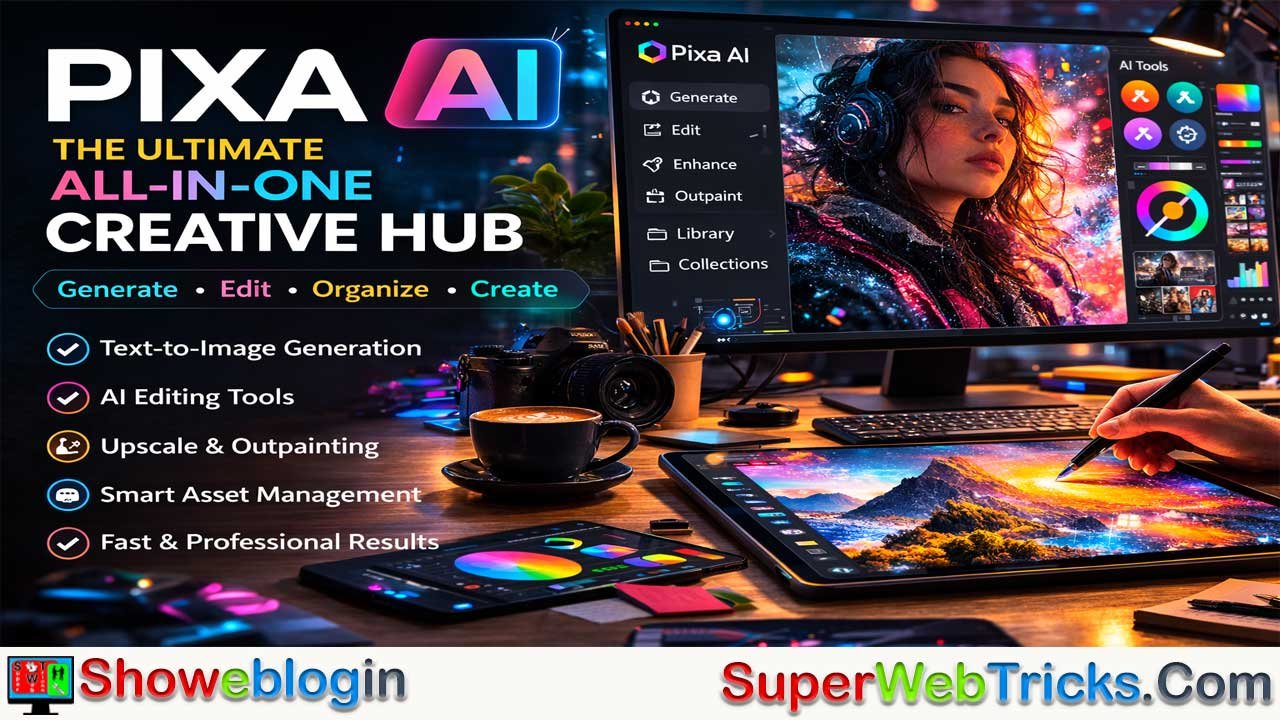




Pixa AI is an all-in-one AI creative platform after three weeks of use. The author explains that many AI tools cause “tool fatigue” because they do only one task, but Pixa combines image generation, editing, and asset management in a single workspace.
It generates high-quality images quickly, offers tools like upscaling, generative fill, outpainting, and background removal, and organizes creations with collections and smart tags. The platform also has a community feed for inspiration and works smoothly in a browser without powerful hardware.
Although it still struggles with complex text rendering and lacks advanced video features, the author concludes that Pixa AI is a powerful and efficient tool for creators, designers, and marketers who want a faster and more organized creative workflow.
| Aspect | Details |
|---|---|
| Platform Type | All-in-one AI creative platform |
| Main Purpose | Generate, edit, and manage AI images in one workspace |
| Core Feature | Fast text-to-image generation with multiple variations |
| Editing Tools | AI upscaling, generative fill, outpainting, background removal |
| Prompt Tool | “Prompt Assist” expands simple prompts into detailed ones |
| Organization | Library system with collections and smart AI tagging |
| Community | Feed for sharing prompts, inspiration, and remixing styles |
| Devices | Works in browser on desktop, iPad, and mobile |
| Performance | Cloud-based; no powerful GPU required |
| Pricing | Free tier available; Pro plan for advanced tools and high-resolution exports |
| Limitations | Struggles with complex text in images and limited video features |
| Best For | Content creators, designers, marketers, and AI enthusiasts |
From Chaos to Creation: My Deep Dive into Pixa AI – The Ultimate All-in-One Creative Hub
In the rapidly evolving landscape of generative artificial intelligence, we are currently living through what I like to call the “Tool Fatigue” era. Every week, a new “revolutionary” image generator or AI editor hits the market. Most of them are bookmarks that eventually gather digital dust because they do one thing well but fail to integrate into a professional workflow.
For the past three weeks, I’ve moved my entire creative pipeline to Pixa AI. I didn’t just want to play with it; I wanted to see if it could replace the fragmented mess of Discord-based generators, browser-based editors, and local asset managers I’ve been using.
This is my first-hand account of using Pixa AI—the good, the bad, and the genuinely transformative.
The First Impression: A Relief from “Discord Chaos”
If you’ve used Midjourney, you know the “Discord struggle.” Scrolling through thousands of public images to find your own, managing complex slash commands, and dealing with a UI that wasn’t built for visual design.
When I first landed on Pixa.com, the difference was immediate. Pixa is built with a “Workspace” philosophy. The interface is clean, dark-themed (thankfully), and prioritizes the canvas. It feels less like a chat room and more like a professional creative suite—something closer to a futuristic version of Adobe Bridge mixed with DALL-E 3.
The onboarding was seamless. Within two minutes of signing up, I was at the dashboard. There’s no steep learning curve here; if you’ve ever used a web-based design tool, you’ll feel at home.
The Core Engine: Text-to-Image Generation
The heart of Pixa AI is its generation engine. I started with a classic test prompt: “A hyper-realistic portrait of a cyberpunk nomad in a neon-drenched Tokyo rainstorm, 8k resolution, cinematic lighting.”
The Speed
One of the most frustrating things about some AI tools is the “queue.” With Pixa, the generation was remarkably fast. I had four high-quality variations in under 15 seconds. In a professional setting where “time is money,” this responsiveness is a massive win.
The Quality and Consistency
The images weren’t just “good for AI”; they were commercially viable. What struck me most was the coherence. Often, AI struggles with anatomy or the physics of light in complex scenes. Pixa’s model seems to have a high “common sense” threshold. The rain didn’t just look like white lines; it interacted with the character’s jacket, creating realistic splashes and reflections.
The “Prompt Assist” Feature
For those who aren’t prompt engineers, Pixa has a built-in “Enhance” or “Assist” feature. I tried typing a lazy prompt: “Cute cat in space.” I clicked the assist button, and it expanded it into a rich, descriptive paragraph about interstellar lighting, cosmic dust, and feline expressions. The result was a masterpiece instead of a meme.
Beyond Generation: The AI Edit Suite
Generating an image is only 50% of the battle. The real work happens in refinement. Pixa AI includes a suite of “Smart Tools” that I now find difficult to live without.
AI Upscaling (The “Enhancer”)
I took an older, low-resolution AI image I had generated months ago and ran it through Pixa’s Enhancer. Unlike standard bicubic upscaling, Pixa actually re-imagines the missing pixels. It added texture to skin and sharpness to distant landscapes without that “plastic” look that over-processed AI images often get.
Generative Fill and Outpainting
This is where I spent most of my time. I had a portrait that was cropped too tightly at the top. Using the Outpainting tool, I simply dragged the canvas upwards, and Pixa “filled in” the rest of the environment. It matched the lighting and the brushstrokes perfectly. It’s the kind of feature that saves hours of manual Photoshop work.
Background Removal
While many tools do this, Pixa’s version handles hair and transparent objects (like glasses) with surprising precision. It’s a one-click solution that actually works on the first try.
The Game Changer: Asset Management and Organization
This is where Pixa AI separates itself from 90% of the competition. Most AI tools generate an image and then… it just sits there. If you want to find it three weeks later, you’re scrolling through a gallery of thousands of unsorted files.
Pixa treats your creations as a Library.
- Collections: I could categorize my “Cyberpunk Project” separately from my “Logo Concepts.”
- Smart Tagging: The AI automatically tags images based on content (e.g., “portrait,” “blue,” “futuristic”). Searching for a specific generation I made days ago took seconds.
- Private vs. Public: You have full control over what stays in your private vault and what you want to share with the community.
For a freelancer or an agency, this organizational layer is the difference between a “toy” and a “tool.”
A Real-World Test: The “Brand Identity” Project
To truly test Pixa, I used it to create a mock brand identity for a fictional high-end coffee shop called “Aura Beans.”
- Mood Boarding: I used the Text-to-Image tool to generate “Minimalist Scandinavian interior design, coffee shop, natural wood, soft morning light.” These became the vibe-check for the project.
- Logo Iteration: I moved to the “Logo Mode” and generated various vector-style icons. While AI still struggles with specific text, the shapes Pixa provided were the perfect foundation for me to take into Illustrator.
- Product Mockups: I uploaded a flat image of a coffee bag and used the AI to place it in a “Realistic lifestyle setting on a marble countertop.” The way the AI wrapped the lighting around the uploaded object was incredibly impressive.
The entire process took me about 45 minutes. Doing this via traditional stock photo sites and manual editing would have taken an entire afternoon.
The “Community” Aspect
Pixa.com features a robust community feed. Normally, I find these distracting, but here it serves as a massive library of inspiration. You can see the prompts others used (if they choose to share them), which acts as a “living school” for learning how to communicate with the AI more effectively.
I found myself “remixing” community images—taking a style I liked and applying my own subjects to it. This collaborative feel makes the platform feel alive and constantly evolving.
Performance and Accessibility
Since Pixa is entirely browser-based, I tested it across devices.
- Desktop (Chrome): Flawless. This is clearly the intended experience.
- iPad Pro: The touch interface is surprisingly responsive. Using the Apple Pencil for “Inpainting” (painting over areas you want the AI to change) felt more natural than using a mouse.
- Mobile: Good for checking on generations or showing off a portfolio, but I wouldn’t recommend doing heavy editing on a phone screen.
The fact that it doesn’t require a $3,000 GPU to run is the beauty of the cloud-based architecture of Pixa. All the heavy lifting happens on their servers, meaning my laptop stayed cool and silent throughout.
Pricing and Value Proposition
Let’s talk about the elephant in the room: cost. Pixa AI offers a tiered subscription model.
As a power user, the “Pro” tier is where the value lies. When you factor in the cost of a separate background remover subscription, an upscaler tool, and a Midjourney/DALL-E subscription, Pixa actually ends up being more cost-effective. It’s a “bundled” approach to AI creativity.
For casual users, there is a free/entry-level tier that allows you to get a feel for the engine, but the high-resolution exports and advanced editing tools are definitely worth the upgrade if you’re using this for work.
Areas for Improvement (The “Bad”)
No tool is perfect, and Pixa AI has room to grow:
- Text Rendering: Like almost all current GenAI, it still occasionally fumbles complex typography. If you need a specific word spelled out in a specific font, you’ll still need to do some post-processing.
- Advanced Video: While Pixa is a titan in static imagery and basic motion, I’d love to see more robust “Text-to-Video” features integrated directly into the workflow in the future.
- Custom Model Training: I would love the ability to “train” the AI on my own face or a specific brand character (LoRA style) directly within the Pixa UI.
The Verdict: Is Pixa AI Worth It?
After three weeks of heavy use, my answer is a resounding yes.
Pixa AI isn’t just another image generator. It’s an operating system for creativity. By combining generation, sophisticated editing, and professional-grade asset management into a single tab at www.pixa.com, it solves the “fragmentation” problem that plagues the AI industry right now.
Who is this for?
- Content Creators: If you need high-quality thumbnails, blog headers, or social media posts daily.
- Designers: As a brainstorming and “rough draft” tool that integrates into a professional workflow.
- Marketers: For rapid prototyping of ad creative and mood boards.
- AI Enthusiasts: Who want a clean, powerful alternative to the “Discord-bot” lifestyle.
Showeblogin Final Thought
We are moving away from the “novelty” phase of AI where we just generate “cool images” for fun. We are entering the “utility” phase, where we need AI to actually help us finish projects faster. Pixa AI is firmly in that utility category. It has turned my creative process from a series of disjointed steps into a fluid, enjoyable conversation with a machine.
If you’re tired of jumping between five different tabs to finish one image, do yourself a favor and head over to Pixa.com. It might just be the last AI creative tool you’ll need to bookmark.
FAQs about Pixa AI
What is Pixa AI?
Pixa AI is an all-in-one AI creative platform that allows users to generate, edit, and organize images in a single workspace using advanced artificial intelligence tools.
How does Pixa AI generate images?
Pixa AI uses a text-to-image engine where users enter a description, and the AI generates multiple high-quality visual variations based on that prompt.
What editing tools are available in Pixa AI?
Pixa AI offers several AI-powered editing tools including image upscaling, generative fill, outpainting, and automatic background removal.
Does Pixa AI require powerful hardware to run?
No, Pixa AI is cloud-based and runs in a web browser, so users do not need a high-end GPU or powerful computer.
Can users organize their generated images in Pixa AI?
Yes, Pixa AI includes a library system with collections and smart AI tagging to help users easily manage and search their images.
Is Pixa AI suitable for professional work?
Yes, many creators, designers, and marketers use Pixa AI for tasks such as creating marketing visuals, concept art, and social media graphics.
Does Pixa AI support mobile devices?
Yes, Pixa AI works on desktops, tablets, and mobile browsers, though heavy editing tasks are best done on larger screens.
What are the limitations of Pixa AI?
Like many AI tools, Pixa AI may struggle with complex text rendering inside images and currently has limited advanced video generation features.
Is there a free version of Pixa AI?
Yes, Pixa AI offers a free or entry-level plan, but advanced features and high-resolution exports are available in paid tiers.











Leave a Reply
You must be logged in to post a comment.