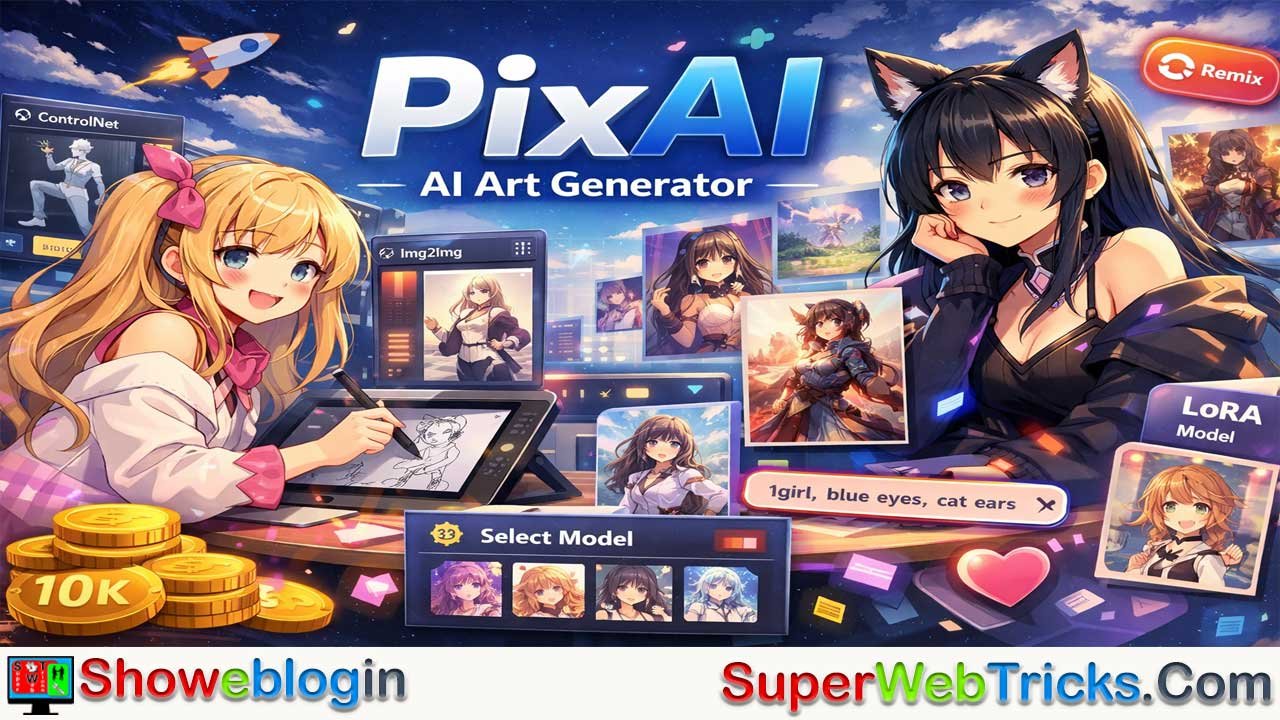



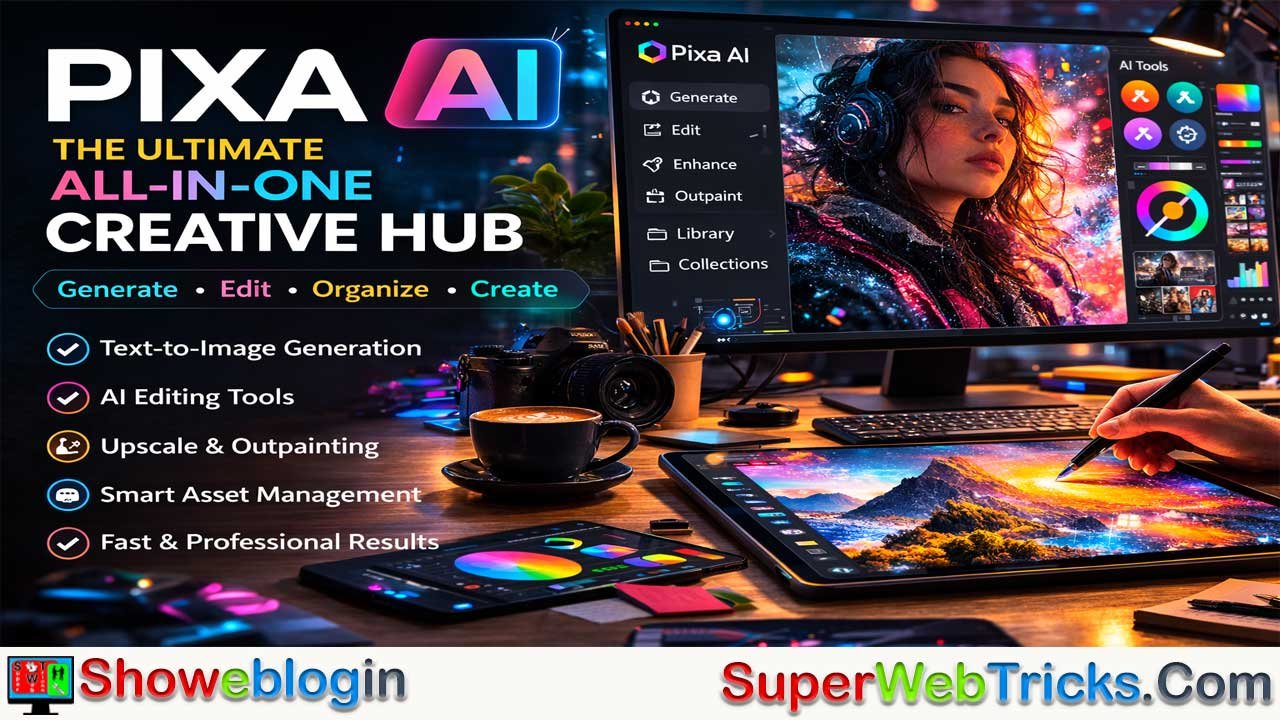
PixAI is an AI art platform that uses Stable Diffusion to help people create anime-style images easily in the cloud without needing powerful hardware. It offers many tools like text-to-image generation, image-to-image editing, ControlNet for pose control, and inpainting to fix parts of images.
Users can choose different models, add LoRAs for specific characters or styles, and use prompts and negative prompts to guide the results. PixAI also works with a free daily credit system and has a large community where people share models and images. Features like the Remix button, contests, and model training make it easy for beginners to learn and for advanced users to create detailed, consistent artwork.
| Aspect | Information |
|---|---|
| Platform | PixAI |
| Type | AI art generation platform |
| Main Technology | Stable Diffusion |
| Main Focus | Anime and digital illustration |
| Core Feature | Text-to-image generation |
| Key Tools | Img2Img, ControlNet, Inpainting, Outpainting |
| Customization | Models, LoRAs, prompts, negative prompts |
| Credits System | Free daily credits with optional paid tiers |
| Community Features | Model sharing, Remix option, contests |
| Unique Advantage | Large library of community models and strong style/character control |
The Ultimate Guide to PixAI: Mastering the Frontier of Anime AI Art Generation
The landscape of generative artificial intelligence has shifted dramatically over the last few years. While platforms like Midjourney and DALL-E 3 have captured the mainstream imagination with their photorealistic and surrealist capabilities, a specialized niche has emerged that caters to the massive global community of anime, manga, and digital illustration enthusiasts. At the forefront of this movement is PixAI (available at pixai.art).
PixAI is more than just a simple text-to-image generator; it is a comprehensive ecosystem that combines model hosting, community sharing, and advanced Stable Diffusion-based tools into a single, user-friendly interface. Whether you are a seasoned prompt engineer or a casual fan looking to bring your favorite character to life, PixAI offers a suite of tools that democratizes high-level digital artistry.
In this article, you will know the features, workflows, and community aspects of PixAI, providing you with everything you need to master this powerful AI tool.
What is PixAI? An Overview
PixAI is an AI-powered art platform primarily built upon Stable Diffusion technology. While Stable Diffusion can be notoriously difficult to set up locally—requiring high-end GPUs and technical knowledge of Python—PixAI brings that power to the cloud.
The platform specializes in anime-style art but is versatile enough to handle realistic photography, 3D renders, and traditional art styles. Its defining feature is the integration of a vast library of user-contributed models, LoRAs (Low-Rank Adaptations), and checkpoints, allowing users to achieve specific aesthetics or generate consistent characters with a single click.
The Economy of PixAI: Credits
Unlike many AI tools that require a steep monthly subscription before you can even try them, PixAI operates on a freemium credit system. Users are typically granted a generous amount of daily credits (often 10,000) for free. These credits allow for dozens of high-quality generations every day. For “Power Users,” there are premium tiers that offer faster generation times, more concurrent tasks, and additional storage for trained models.
The Core Generation Engine: From Text to Masterpiece
At its heart, PixAI is a text-to-image generator. However, its “Generator” interface is one of the most feature-rich in the industry.
The Workflow of Image Generation
The process of creating an image on PixAI follows a logical flow that balances simplicity with granular control.
- Model Selection: Instead of a “one-size-fits-all” model, PixAI allows you to choose a Base Model. These include popular community standards like NeverEnding Dream, Moonbeam, and Anything V5. Your choice of base model determines the “DNA” of your image—whether it looks like a 90s anime, a modern 3D game, or a cinematic photograph.
- Prompting: You enter a description of what you want to see. PixAI supports “Danbooru-style” tags (e.g.,
1girl, solo, long hair, blue eyes, starry sky) which are highly effective for anime models, as well as natural language. - Negative Prompts: This is where you tell the AI what not to include. Common negative prompts include
low quality, blurry, extra fingers, bad anatomy. - LoRA Integration: This is PixAI’s “secret sauce.” You can stack LoRAs—small, specialized model files—on top of your base model to add specific characters, clothing, or art styles.
Deep Dive into Advanced Features
For the AI Tool user who wants to go beyond “Generate,” PixAI offers tools that were previously reserved for local Stable Diffusion installations.
Image-to-Image (Img2Img)
Img2Img allows you to upload an existing image and use it as a structural or color guide for the AI. This is perfect for turning a rough sketch into a polished illustration or changing the art style of a photograph.
ControlNet: Total Pose Control
One of the biggest frustrations with AI art is the “randomness” of character poses. PixAI integrates ControlNet, a technology that allows you to specify exactly how a character should be positioned. You can use “Canny Edge” to maintain a specific outline or “OpenPose” to replicate a skeletal structure. If you want a character to be pointing at the camera or sitting in a specific chair, ControlNet makes it possible.
Inpainting and Outpainting
- Inpainting: Did the AI generate a perfect character but a weird-looking hand? You can use the Inpainting tool to mask the hand and tell the AI to re-generate only that specific area.
- Outpainting: This allows you to “expand” the canvas. If you have a portrait but want to see the rest of the room, Outpainting uses the existing context to generate the surrounding environment.
The Model Marketplace and Training
One aspect that sets PixAI apart from platforms like Midjourney is its transparency and modularity. On PixAI, models are treated like a library.
Using Community Models
The “Model” tab is a treasure trove of creativity. You can browse thousands of models created by other users. These models are often trained on specific artists’ styles or specific characters from popular media. You can “Heart” these models to save them to your profile for quick access during generation.
Training Your Own LoRA
PixAI offers an accessible LoRA Training feature. If you have a specific character or an original art style, you can upload a dataset of 15–30 images. PixAI’s servers will then “train” a specialized mini-model for you. Once the training is complete (usually taking 30–60 minutes), you can generate that specific character or style whenever you want, and even share it with the community.
The Social and Community Aspect
PixAI functions as a social network for AI artists. The homepage features a “Credit” feed of the most popular recent generations, allowing for endless inspiration.
The “Remix” Button
This is perhaps the most important feature for beginners. If you see an image you love in the community feed, you can click “Remix.” This automatically loads the exact model, prompt, negative prompt, and settings used to create that image into your generator. It is the fastest way to learn how “pro” prompt engineers achieve their results.
Contests and Challenges
To keep the community engaged, PixAI frequently hosts themed contests (e.g., “Cyberpunk Challenge” or “Summer Festival”). These contests often come with credit prizes and give users a chance to showcase their creative interpretations of a specific prompt or theme.
Mastering Prompt Engineering for Anime
To get the most out of PixAI, you need to understand how the models “think.” Most anime-focused models are trained on tagged image boards.
The Power of Tags
Instead of writing, “A beautiful girl standing under a cherry blossom tree in the rain,” try:
1girl, solo, cherry blossoms, falling petals, rain, wet clothes, cinematic lighting, masterpiece, highres.
Weighted Prompts
PixAI allows you to emphasize certain words. In many models, using parentheses like (cat ears:1.2) tells the AI to pay 20% more attention to the cat ears. If the AI is ignoring a part of your prompt, weighting is the solution.
Comparison: PixAI vs. The Competition
| Feature | PixAI | Midjourney | Leonardo.ai |
|---|---|---|---|
| Primary Focus | Anime / Illustration | General Purpose / Artistic | General / Game Assets |
| Model Variety | Thousands of User LoRAs | Proprietary Only | Selection of Fine-tuned |
| Free Tier | Generous Daily Credits | None (Paid Only) | Limited Daily Credits |
| Control | High (ControlNet/Img2Img) | Medium (Vary Region) | High |
| Ease of Use | Moderate (Learning Curve) | Easy (Discord Based) | Moderate |
PixAI wins for users who want character consistency and specific stylistic control, especially within the realm of 2D art.
Ethics, Safety, and Content Policies
As with any generative AI, ethics and safety are paramount. PixAI has robust content filters, but it also allows for more creative freedom than “walled garden” AIs like DALL-E.
- Copyright: While AI-generated images currently exist in a legal gray area regarding copyright, PixAI’s terms generally allow you to use your generations for personal use. Commercial use often depends on the specific base model and LoRA creators’ licenses.
- Safety: The platform utilizes NSFW filters that users can toggle (depending on regional laws and platform settings). However, the community guidelines strictly prohibit the generation of illegal or harmful content.
Tips for Power Users
- Use the Mobile App: PixAI has a highly functional mobile app that mirrors the website. It’s perfect for checking on your LoRA training or doing quick generations on the go.
- Experiment with Sampling Steps: Higher isn’t always better. Most modern models work perfectly between 20 and 30 steps. Going higher often just wastes credits without improving the image.
- Check the “Metadata”: When looking at community images, look for the “Seed” number. If you use the exact same seed, model, and prompt, you can recreate an image perfectly—this is the best way to test how small changes to a prompt affect the outcome.
- Batch Generation: Instead of generating one image at a time, generate 4. It costs more credits upfront but saves time in finding that one “perfect” composition.
Conclusion: The Future of Your Creativity
PixAI represents a bridge between the technical complexity of open-source AI and the accessibility of modern web apps. By giving users access to the vast world of Stable Diffusion models without the need for a $2,000 PC, it has opened the doors for a new generation of digital creators.
Whether you are looking to create an avatar for your social media, illustrate a light novel, or simply explore the boundaries of what AI can do, PixAI provides the canvas and the tools. The “art” in AI art isn’t just in the output—it’s in the curation, the prompting, and the vision you bring to the machine.
FAQs about PixAI
What is PixAI used for?
PixAI is used to generate AI artwork, especially anime-style images, using text prompts and advanced tools based on Stable Diffusion.
Is PixAI free to use?
Yes, PixAI offers a free plan with daily credits that allow users to generate multiple images each day. Paid plans provide faster generation and more features.
Do I need a powerful computer to use PixAI?
No. PixAI runs in the cloud, so users do not need high-end GPUs or complex software installations.
What are LoRAs in PixAI?
LoRAs are small model add-ons that help the AI generate specific characters, styles, clothing, or visual themes more accurately.
Can I edit images in PixAI?
Yes. PixAI includes tools like Img2Img, Inpainting, and Outpainting to modify images, fix parts of them, or expand the canvas.
Can I train my own model on PixAI?
Yes. PixAI allows users to train their own LoRA models by uploading a dataset of images to create a custom style or character.
What is the Remix feature in PixAI?
The Remix feature lets users copy the prompt, model, and settings of an existing image so they can recreate or modify it easily.
Can PixAI create styles other than anime?
Yes. While PixAI focuses on anime art, it can also generate realistic images, 3D renders, and other artistic styles depending on the model used.
What are negative prompts in PixAI?
Negative prompts tell the AI what to avoid in an image, such as blurry details, extra fingers, or poor anatomy.
Can PixAI images be used commercially?
Commercial use may be allowed depending on the license of the base model and LoRA used, so users should check the specific usage terms.



Leave a Reply
You must be logged in to post a comment.