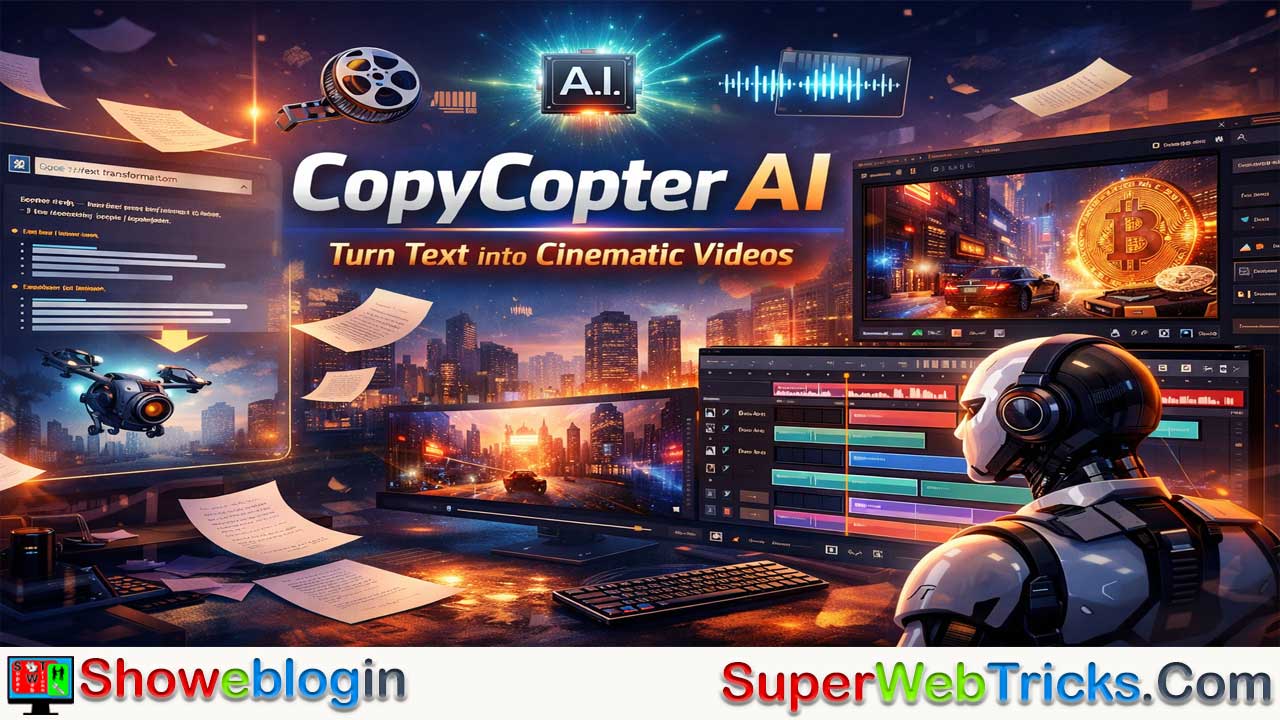



CopyCopter AI is an AI-powered text-to-video platform that positions itself as a “Director’s Studio” rather than a one-click generator, combining automated scripting, voiceovers, and visual matching with a full multi-track, browser-based editor similar to professional NLE software.
Users can paste long-form content (up to 20,000 characters or a URL), have the AI break it into optimized scenes, generate synced voiceovers, and auto-select visuals, then refine everything inside CopyCopter Studio with layered tracks, keyframe animations, precise transitions, and detailed audio controls like ducking and word-level timing.
It integrates advanced models such as Flux Pro Ultra, Stable Diffusion, Kling, Luma Dream, and voice technology from ElevenLabs, enabling high-quality visuals and multilingual narration. With a credit-based pay-as-you-go pricing model, cloud rendering, and flexible aspect ratios, it’s particularly suited for bloggers, faceless YouTube creators, marketers, social media managers, and educators who want both AI efficiency and granular creative control, though it comes with a learning curve and occasional AI-generated visual glitches.
| Category | Details |
|---|---|
| Platform Type | AI text-to-video generator with built-in professional timeline editor |
| Core Positioning | “Director’s Studio” – combines AI automation with manual editing control |
| Input Options | URL or up to 20,000 characters of text |
| Main Strength | Multi-track timeline with keyframe animation & precise transitions |
| AI Visual Models | Flux Pro Ultra, Stable Diffusion |
| AI Motion Tools | Kling, Luma Dream |
| AI Voice Integration | ElevenLabs (45+ voices, 29+ languages) |
| Audio Controls | Background music ducking, fade controls, word-level timing edits |
| Editing Features | Unlimited tracks, split, hard cut, dissolve, wipe, Bezier keyframes |
| Export Options | 9:16 (Shorts/Reels), 16:9 (YouTube), WebM & H.264 |
| Pricing Model | Credit-based (Pay-As-You-Go), no monthly subscription required |
| Best For | Bloggers, faceless YouTube creators, marketers, educators |
| Main Drawback | Slight learning curve; occasional AI visual glitches |
CopyCopter AI: The Complete Guide to Turning Text into Cinematic Video
In the crowded landscape of AI video generators, most tools offer a simple promise: click a button, get a video. While convenient, this “slot machine” approach often leaves creators with generic results and zero control.
CopyCopter AI has carved out a unique niche by rejecting this simplicity. It positions itself not just as a generator, but as a Director’s Studio. It combines the speed of AI text-to-video generation with the precision of a non-linear editor (NLE), giving users frame-by-frame control over their content.
Whether you are a marketer repurposing blog posts, a “faceless” YouTube channel creator, or a storyteller looking for granular control, this guide covers everything you need to know about CopyCopter AI.
What is CopyCopter AI?
At its core, CopyCopter is an AI-powered platform that converts long-form text (like blog posts, news articles, or newsletters) into short, engaging videos. However, unlike competitors that lock you into a rigid template, CopyCopter provides CopyCopter Studio—a browser-based video editing suite that resembles professional software like Adobe Premiere or CapCut, but with AI natively built-in.
The Core Philosophy: “Few Direct”
CopyCopter’s branding emphasizes a shift from generating to directing. The tool is built for users who want to use AI to do the heavy lifting (scripting, voiceovers, initial visuals) but demand the ability to tweak every transition, keyframe, and sound wave manually.
Key Features: Under the Hood
1. The “Studio” Editor (Multi-Track Timeline)
This is CopyCopter’s superpower. Instead of a simple “regenerate” button, you get a full multi-track timeline.
- Layering: You can stack unlimited tracks of video, audio, text, and images.
- Keyframe Animation: Unlike most AI tools, CopyCopter allows for Curves-Driven Motion. You can manually animate the position, scale, and rotation of any element using precise Bezier curves, allowing for smooth, custom movements (e.g., a slow “Ken Burns” zoom or a dynamic slide-in).
- Precision Control: Use tools like “Split,” “Hard Cut,” “Dissolve,” and “Wipe” to edit scenes exactly where you want them.
2. Intelligent Text-to-Video Engine
CopyCopter excels at repurposing content. You can paste a URL or up to 20,000 characters of text. The AI then:
- Analyzes the text to understand context and tone.
- Generates a script optimized for video (breaking long paragraphs into punchy scenes).
- Auto-matches visuals using stock footage or AI generation.
- Syncs voiceovers automatically.
3. Advanced AI Model Integration
CopyCopter doesn’t just use one AI model; it integrates the best-in-class tools directly into the editor:
- Visuals: Access models like Flux Pro Ultra and Stable Diffusion for generating high-fidelity images.
- Motion: Use tools like Kling v2 and Luma Dream to animate static images into video clips.
- Audio: Through a partnership with ElevenLabs, it offers over 45 hyper-realistic AI voices in 29+ languages.
4. Audio & Voice Control
The audio features go beyond simple narration. You get visual audio lanes where you can:
- Add background music with “ducking” (automatically lowering music volume when the voiceover speaks).
- Adjust fade-ins and fade-outs with drag handles.
- Edit word-level timing to ensure the voice matches the visuals perfectly.
How it Works: A Step-by-Step Workflow
If you are new to the tool, here is the typical workflow to go from a blank page to a finished video:
Step 1: Input Your Source
Paste the URL of a blog post or your raw script into the generator.
Step 2: Script & Scene Generation
The AI processes your text and breaks it down into “Scenes.” It generates a voiceover script for each scene and suggests a visual background. Pro Tip: You can edit the script here before the video is generated to save time later.
Step 3: The “Director” Phase (Customization)
Before rendering, you can review the AI’s visual choices. If a scene talks about “Bitcoin,” but the AI chose a picture of a generic coin, you can swap it. You can use Custom Style Prompts to tell the AI exactly what image style you want (e.g., “Cyberpunk city, neon lights, 4k”).
Step 4: Studio Editing
Once generated, the project opens in the Studio timeline. Here you can:
- Drag and drop new media assets.
- Add text overlays and motion graphics.
- Keyframe specific movements.
- Fix any glitches in the AI voiceover.
Step 5: Export
Render your video in the cloud. You can choose different aspect ratios (9:16 for TikTok/Shorts or 16:9 for YouTube) and export to formats like WebM or H.264.
Pricing: A Shift to “Pay-As-You-Go”
Note: Pricing models for AI tools change frequently. Always check the official site for the latest numbers.
Recently, CopyCopter made a significant shift away from subscriptions to a Credit-Based (Pay-As-You-Go) model.
- No Monthly Lock-in: You don’t have to pay a monthly fee if you aren’t using the tool.
- Credits: You purchase credits that are used for generating minutes of video, using premium AI models (like Flux or ElevenLabs voices), and rendering.
- Why this matters: This is ideal for users who might have a busy month of video creation followed by a quiet month. You only pay for what you create.
Who is CopyCopter For?
| User Type | Why CopyCopter? |
|---|---|
| Bloggers & SEOs | Instantly turn high-performing articles into YouTube videos to capture search traffic on two platforms (Google & YouTube). |
| Faceless Channel Creators | Create high-quality “Cash Cow” videos (documentaries, top 10 lists, explainer videos) without showing your face or recording your voice. |
| Social Media Managers | Quickly churn out multiple variations of a video for TikTok, Reels, and Shorts using the aspect ratio tools. |
| Educators | Turn lecture notes or textbooks into engaging visual summaries for students. |
Pros and Cons
Pros:
- Total Control: The timeline editor is miles ahead of “one-click” generators.
- High-Quality Output: Integration with top-tier models like Flux and ElevenLabs ensures professional results.
- Flexible Pricing: The credit model is consumer-friendly for intermittent users.
- Web-Based: No heavy software to install; renders happen in the cloud.
Cons:
- Learning Curve: Because it has a full timeline editor, it is slightly more complex to learn than simple “magic” generators.
- AI Glitches: As with all AI, fingers or text in generated images can sometimes be weird and require manual regeneration.
Conclusion
CopyCopter AI is bridging the gap between automation and artistry. If you are tired of AI video tools that treat you like a passive observer, CopyCopter is the upgrade you’ve been looking for. It gives you the speed of AI but hands you the director’s chair, ensuring the final video looks exactly the way you envisioned it.
FAQs about CopyCopter AI
What is CopyCopter AI?
CopyCopter AI is an AI-powered text-to-video platform that converts long-form text, blog posts, or URLs into fully edited videos using automation plus a professional timeline editor for manual control.
How is CopyCopter different from other AI video generators?
Unlike one-click generators, it provides a multi-track timeline editor with keyframe animation, layered media, and precise transitions, giving users full creative control.
What kind of content can I upload?
You can paste a URL or up to 20,000 characters of raw text including blog posts, newsletters, scripts, or articles.
Does CopyCopter automatically generate scripts?
Yes, it analyzes your text and converts it into short, punchy scenes optimized for video narration.
Can I edit the script before generating the video?
Yes, you can modify scenes and narration before rendering to improve pacing and clarity.
Does it include a timeline editor?
Yes, it includes a browser-based multi-track timeline similar to professional NLE software.
Can I layer multiple media tracks?
Yes, you can stack unlimited tracks of video, audio, text, and images.
Does it support keyframe animation?
Yes, it supports Bezier curve-based keyframe animation for position, scale, and rotation adjustments.
Can I manually control transitions?
Yes, you can use tools like split, hard cut, dissolve, and wipe to control scene transitions.
Which AI image models does it integrate?
It integrates advanced image models such as Flux Pro Ultra and Stable Diffusion.
Can it animate static images into video?
Yes, it supports motion generation using tools like Kling and Luma Dream.
Does it offer AI voiceovers?
Yes, it integrates with ElevenLabs to provide over 45 realistic AI voices in more than 29 languages.
Can I adjust voice timing?
Yes, you can edit word-level timing to match visuals precisely.
Does it support background music control?
Yes, it includes audio lanes where you can add music, apply ducking, and adjust fade-ins and fade-outs.
What export formats are available?
You can export in formats such as WebM and H.264.
Does it support vertical video for TikTok and Shorts?
Yes, it supports 9:16 vertical format and 16:9 horizontal format.
Is it cloud-based or downloadable software?
It is fully web-based and renders videos in the cloud.
Does it require installation?
No, it runs entirely in the browser.
What pricing model does CopyCopter use?
It uses a credit-based pay-as-you-go system instead of a monthly subscription.
Do credits expire?
Credit policies can change, so users should check the official website for the latest terms.
Is it suitable for YouTube automation channels?
Yes, it is ideal for faceless channels creating documentaries, explainers, and top 10 videos.
Can bloggers repurpose content into videos?
Yes, bloggers can turn high-performing articles into YouTube or social media videos.
Is it good for social media managers?
Yes, it allows fast creation of multiple video variations for different aspect ratios.
Can educators use it for lessons?
Yes, teachers can convert lecture notes into engaging visual summaries.
Is there a learning curve?
Yes, because of its advanced editing capabilities, beginners may need time to learn the interface.
Does it automatically match visuals to script content?
Yes, it analyzes context and suggests relevant visuals automatically.
Can I override AI-generated visuals?
Yes, you can manually replace or refine visuals before and after generation.
Can I use custom style prompts?
Yes, you can specify visual styles such as cinematic, cyberpunk, or documentary.
Does it support multiple languages?
Yes, voiceovers are available in more than 29 languages.
Can I fix AI glitches manually?
Yes, you can regenerate visuals or manually adjust scenes in the timeline editor.
Is it suitable for beginners?
Yes, but beginners may prefer simpler tools if they do not need advanced editing control.
Does it work for marketing videos?
Yes, marketers can quickly transform articles and landing page content into promotional videos.
Can I create short-form content quickly?
Yes, the AI scene breakdown makes it efficient for Shorts, Reels, and TikTok videos.
Does it replace professional video editors?
It can replicate many professional editing functions but may not fully replace high-end studio software for complex productions.
Is it scalable for agencies?
Yes, agencies can use credits to produce multiple client videos without monthly subscription lock-in.
Can I edit after the video is generated?
Yes, the Studio editor allows full post-generation customization.
Is CopyCopter fully automated?
It automates much of the workflow but is designed to give you manual control over the final result.




Leave a Reply
You must be logged in to post a comment.