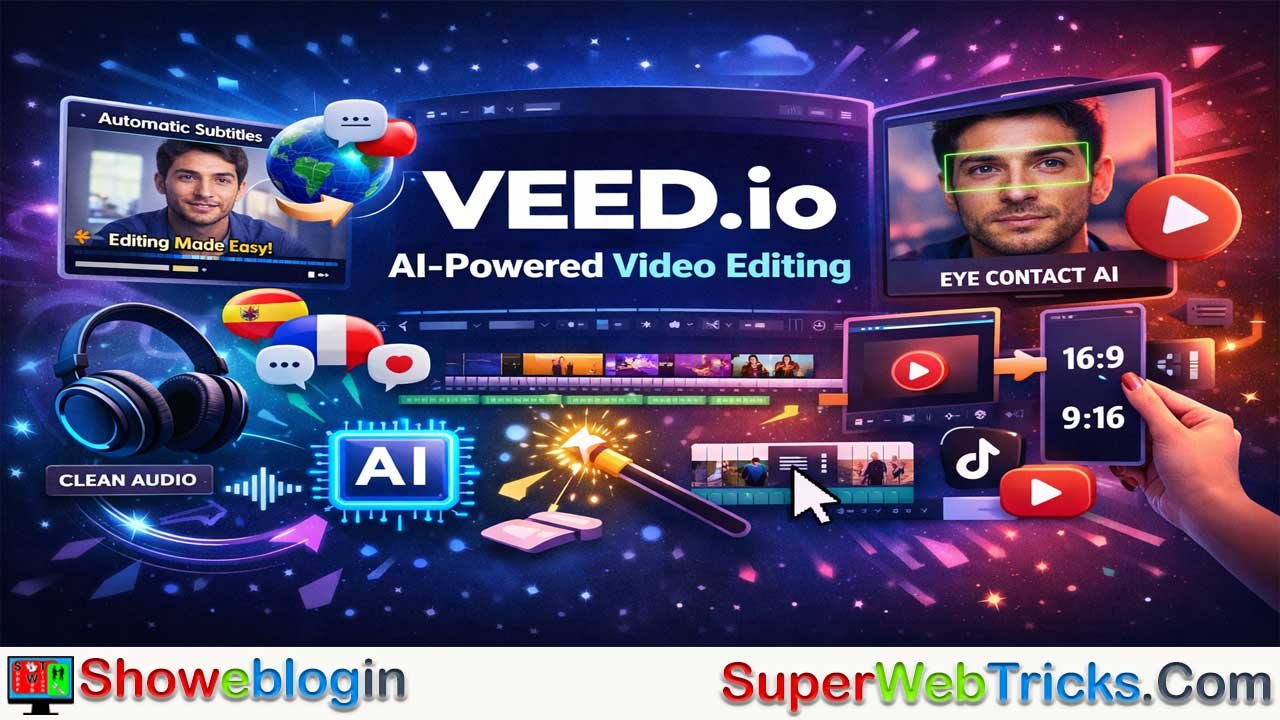





Veed.io is a browser-based, AI-powered video editing tool designed to make video creation fast and simple for creators, marketers, and businesses. It removes the complexity of traditional editors by offering an intuitive interface and powerful AI features like automatic subtitles, translation, silence removal, eye-contact correction, and audio cleanup.
Users can also generate scripts, record screens and webcams, and quickly resize videos for platforms like YouTube or TikTok. Because processing happens on Veed’s servers, even low-power computers can edit high-quality videos. While it lacks advanced VFX and requires an internet connection, it saves significant time by automating tedious editing tasks, making it a practical all-in-one solution for everyday video production.
| Category | Details |
|---|---|
| Tool Type | AI-powered browser-based video editor |
| Main Purpose | Fast video creation and editing for creators, marketers, and teams |
| Platform | Web-based (no installation required) |
| Key AI Features | Auto-subtitles, translation, Magic Cut (removes pauses), Eye Contact AI, Clean Audio |
| Content Tools | Script generator, text-to-speech, screen & webcam recording |
| Editing Features | Drag-and-drop timeline, subtitle styling, video resizing for social media |
| Collaboration | Cloud editing with shared links and timestamp comments |
| Performance | Server-side processing allows editing even on low-power devices |
| Best For | YouTubers, social media creators, educators, and marketing teams |
| Limitations | Requires internet; limited advanced VFX and motion graphics |
| Pricing Model | Tiered plans: Free, Basic, Pro, Business/Enterprise |
Beyond the Timeline: A Deep Dive into Veed.io – The AI-Powered Editor That Actually Saves Time
In the rapidly evolving landscape of digital content, video has transitioned from a “nice-to-have” to an absolute necessity. Whether you are a solo creator, a marketing professional, or a corporate trainer, the pressure to produce high-quality video content at scale is immense. However, for many of us, the traditional video editing workflow is a significant bottleneck. High-end software like Adobe Premiere Pro or DaVinci Resolve offers unparalleled power, but they come with a steep learning curve and hardware requirements that can ground a project before it even starts.
This is where Veed.io enters the frame. Often marketed as the “Canva of video editing,” Veed promises a browser-based, AI-driven experience that democratizes professional-grade video production. After spending several weeks living inside the platform—using it for everything from quick social media clips to long-form educational content—I’ve put together this comprehensive look at what makes Veed a standout tool for the modern AI-integrated workflow.
The Onboarding Experience: Zero to Hero in Minutes
The first thing that strikes you about Veed is its accessibility. Because it lives entirely in your browser, there is no bulky installation process. Within thirty seconds of signing up, I was in the editor interface.
The layout is refreshingly intuitive. Unlike traditional “track-heavy” editors that can feel like looking into the cockpit of a 747, Veed uses a clean, modular design. Your media assets sit on the left, the preview occupies the center, and the timeline—the heart of any editor—runs along the bottom.
What sets the “first-hand experience” apart here is the lack of friction. If you’ve ever used a basic photo editor or a slide-based presentation tool, you already know how to use 70% of Veed. For an AI tool user, this is critical; we want the technology to work for us, not to spend hours reading manuals.
The “Killer Feature”: AI Subtitles and Translations
If I had to pinpoint the exact moment I became a Veed convert, it was testing the Auto-Subtitle feature.
In the past, captioning a ten-minute video was a grueling task involving manual transcription or fighting with clunky SRT files. Veed’s AI transcription is, quite frankly, startlingly accurate. I uploaded a video with a mix of technical jargon and a slight background hum; the AI managed to clock in at about 95% accuracy on the first pass.
But the real magic isn’t just the transcription—it’s the Styling. Veed allows you to turn these subtitles into “active” elements. You can choose from “Karaoke-style” highlights (where words light up as they are spoken) or classic cinematic blocks.
For those working in global markets, the Video Translation tool is a game-changer. With a few clicks, you can duplicate your project and translate the subtitles into over 50 languages. The AI doesn’t just do a literal word-for-word translation; it maintains a level of contextual nuance that is sufficient for most social media and internal corporate communications.
Diving into the AI Toolkit: More Than Just Filters
Veed has leaned heavily into “Generative AI” and “AI Assistance,” and for the most part, it delivers on the hype. Here are the tools that fundamentally changed my editing workflow:
1. The Magic Cut
One of the most tedious parts of editing is “the rough cut”—removing the “ums,” “ahs,” and long pauses where the speaker is just thinking. Veed’s Magic Cut analyzes the audio and identifies these gaps. With one click, it slices them out. In a recent project, this single tool turned a 12-minute rambling recording into a tight 8-minute draft in under 15 seconds. It isn’t perfect—sometimes it cuts a breath that was meant for dramatic effect—but as a starting point, it saves hours of manual labor.
2. Eye Contact AI
This is one of those “black magic” features. We’ve all been there: you’re reading a script off a screen just slightly above or below the camera lens, and in the recording, it’s obvious you aren’t looking at the audience. Veed’s Eye Contact tool uses AI to digitally realign your pupils so it looks like you are staring directly into the lens. While it can look slightly “uncanny valley” if your head movement is extreme, for standard “talking head” videos, it adds a level of professional polish that previously required a teleprompter.
3. Clean Audio
Browser-based editors usually struggle with audio processing. However, Veed’s Clean Audio feature acts like a high-end noise gate and compressor combined. It effectively removes background fan noise, traffic, and that “room echo” that plagues home offices. It makes a $50 headset sound remarkably close to a $200 studio mic.
4. AI Image and Script Generation
If you’re staring at a blank canvas, Veed provides a Script Generator powered by LLMs. You give it a prompt—”Write a 60-second ad for a new productivity app”—and it generates the text, which you can then feed directly into their Text-to-Speech engine. The voices available are diverse and surprisingly human-sounding, lacking that robotic cadence of older TTS systems.
Content Repurposing: The Social Media Engine
For content creators, the “create once, distribute everywhere” philosophy is the goal. Veed makes this incredibly simple through its Auto-Resizer.
I took a 16:9 landscape video meant for YouTube and, with a single click, converted it to a 9:16 vertical format for TikTok and Instagram Reels. Veed doesn’t just stretch the image; it allows you to easily reposition the frame or use AI to keep the speaker centered.
Combined with the Brand Kit (available on Pro plans), you can instantly apply your brand’s colors, fonts, and logos to every video. This ensures that even if you’re churning out three clips a day, they all look like they came from the same production house.
Screen Recording and Webcam: The All-in-One Solution
Veed isn’t just an editor; it’s also a capture tool. The built-in screen recorder allows you to record your screen, your webcam, or both simultaneously.
I found this particularly useful for creating software tutorials. You can record the demo, and as soon as you hit “stop,” the footage is already in the Veed editor. No exporting, no uploading, no “file format not supported” errors. You can then immediately add “callouts”—arrows, text boxes, and highlights—to point out specific features on the screen.
Collaboration: The Cloud Advantage
Working with a team on traditional video software usually involves “Version 1,” “Version 2_Final,” “Version 2_Final_Actual_Final” files being sent over Dropbox.
Veed operates like Google Docs. I can send a link to a colleague, and they can leave comments at specific timestamps or jump in and make an edit themselves. For agencies or marketing teams, this transparency is a massive time-saver. There is no “rendering out” a preview just to get feedback; the link is the preview.
The Performance Reality Check: Is Browser-Based Enough?
The biggest skepticism people have about browser editors is performance. Can a browser handle 4K footage?
In my experience, Veed handles 4K surprisingly well, provided you have a stable internet connection. Because the heavy lifting (rendering and AI processing) happens on Veed’s servers rather than your local CPU/GPU, you can edit high-quality video on a modest Chromebook just as easily as on a MacBook Pro.
However, there are trade-offs. If your internet is spotty, you will experience lag in the preview window. Also, while Veed is excellent for assembly and polish, it is not a motion graphics suite. If you need complex 3D tracking or heavy VFX, you will still need a desktop NLE (Non-Linear Editor). But for 90% of business and social media use cases, the browser-based approach is more than sufficient.
Pricing and Value: Which Plan is Right?
Veed offers a tiered pricing structure that scales with your needs:
- Free Plan: Great for testing the waters. You get basic editing and auto-subtitles (with a watermark and limited export length).
- Basic Plan: Removes the watermark and gives you more storage. Good for casual creators.
- Pro Plan: This is where the AI tools really live. You get the Clean Audio, Eye Contact AI, and higher transcription limits. This is the sweet spot for professional creators.
- Business/Enterprise: Adds the Brand Kit, custom templates, and advanced collaboration tools.
When compared to the monthly cost of a full Creative Cloud suite plus the cost of a transcription service (like Rev) plus a storage service (like Dropbox), Veed’s “all-in-one” price tag becomes very attractive.
Pros and Cons: A Balanced View
The Pros:
- Speed: From upload to export, it is arguably the fastest workflow on the market.
- AI Integration: The AI tools aren’t gimmicks; they solve real problems (audio, subtitles, dead air).
- Ease of Use: If you can drag and drop, you can edit a video.
- Accessibility: Edit from any computer, anywhere, without hardware limitations.
- Feature Richness: Subtitles, screen recording, and stock media are all in one place.
The Cons:
- Internet Dependency: No offline mode. If your Wi-Fi is down, work stops.
- Advanced Features: Lacks deep color grading, advanced audio mixing, or complex keyframing.
- Subscription Model: Like most AI tools, it’s a recurring cost which can add up for hobbyists.
Final Verdict: Who is Veed.io For?
After extensive use, it’s clear that Veed.io is designed for the efficient creator.
If you are a filmmaker trying to win at Sundance, this isn’t your tool. But if you are an AI tool enthusiast, a YouTuber, a LinkedIn thought leader, or a Corporate L&D professional, Veed is a powerhouse.
It recognizes that in the current content economy, done is better than perfect, and fast is better than expensive. By automating the most tedious parts of video production—transcription, cutting, and basic polishing—Veed allows you to spend more time on the creative side of content: the storytelling and the strategy.
The platform is constantly evolving, with new AI features appearing in the dashboard every few months. For those looking to integrate AI into their creative stack, Veed.io isn’t just a video editor; it’s a force multiplier for your digital presence.
FAQs about Veed.io
What is Veed.io used for?
It is used to create, edit, and publish videos quickly using AI tools such as auto-subtitles, silence removal, audio cleanup, and social media resizing.
Is Veed.io free to use?
Yes, it offers a free plan with basic editing features, but exports include a watermark and have limited length. Paid plans unlock advanced AI tools and remove restrictions.
Do I need to install software to use Veed.io?
No. Veed.io runs entirely in a web browser, so you can edit videos online without downloading or installing any software.
What AI features does Veed.io provide?
It includes AI subtitles, automatic translation, Magic Cut for removing pauses, Eye Contact AI, Clean Audio, script generation, and AI text-to-speech voices.
Can Veed.io create subtitles automatically?
Yes. Its AI can automatically transcribe speech into subtitles with high accuracy and allows users to style captions in different formats.
Does Veed.io support social media video formats?
Yes. It can automatically resize videos into formats like vertical 9:16 for TikTok and Instagram Reels or standard 16:9 for YouTube.
Can teams collaborate on Veed.io projects?
Yes. Users can share a project link, allowing team members to comment on specific timestamps or edit the video collaboratively in the cloud.
Is Veed.io good for professional video production?
It is excellent for fast content creation, tutorials, marketing videos, and social media clips, but it lacks advanced VFX and deep color grading found in high-end editing software.
Does Veed.io work on low-power computers?
Yes. Because processing happens on Veed’s servers, even basic laptops or Chromebooks can handle editing high-quality videos.
Does Veed.io require an internet connection?
Yes. Since it is a browser-based platform, you need a stable internet connection to edit, process AI features, and export videos.








Leave a Reply
You must be logged in to post a comment.